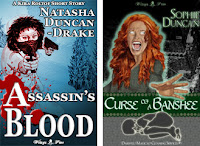
So my pages on where to upload eBooks and how to format an eBook have needed updating for a while and I have finally gotten around to it. One has completely changed, since my methods for creating eBooks is now totally different, and the other has more information and some other changes. I hope someone might find the information useful, since when we're first starting out this can all be a bit of a mystery.
BAD Timing? Now This Is AWKWARD! 🎄 😇 (Christmas Romance Short Story) #comedy
Hello, Lovelies. I hope you are all doing well, Long time no talk. Let's just say it's been a bit of a year and look forward to Christmas and 2023 💝
My YouTube channel Tales with Tasha, is still going strong and slowly building an audience. Please, do check it out if you haven't already. New stories every day as YouTube shorts :- some fun, some terrifying, some mystifying and more.
This week I have a longer story as well, in the spirit of Christmas. You can listen for free at Tales with Tasha and pick up a copy at all the usual eBook places as well. Great for sitting down to over a nice cup of hot chocolate, or you beverage of choice.
Fallen Angel: A Christmas Romance
LGBTQ+ Christmas Romance
Kay is preparing for her and her husband Greg’s annual Christmas party when the angel falls off her tree. She’d put him right back up there, only now he’s six foot two, naked and adorably confused. Not one to argue with Christmas magic, Kay sets about trying to figure out what is going on as well as make sure her guest is no longer sans clothes.
Technology is always changing and things have progressed since I last wrote a blog post on how to format eBooks. I have just written myself a new checklist for creating eBooks in what I consider to be the most efficient way, so I thought I'd share. Now don't take this as me saying, this is the only way to do it, but this is how I do it, and it works for me. No doubt by the time I hit publish the tech will have changed again!
Kindle Create plugin for MS Words from KDP (this is not Kindle Create stand alone, which is used for formatting and produces a KDP proprietary format and is a pain to use).
I start with this one because the Kindle Create Add-in makes life so much easier.
Make sure the manuscript is ready for publishing and has been thoroughly edited.
Install the Kindle Create Add-in.
Go to the Kindle tab in Word and click the Get Started button.
Choose the theme for the book.
Save the book file (I usually put -KINDLE on the end of my file names so I can always tell them apart). N.B. Make sure to save regularly through the formatting process to avoid losing anything.
Click Insert Template Page from the ribbon and choose Book Title Page - from now on when inserting a page type, they all come from the Insert Template Page
Insert Copyright Page
Search and replace Book Title with the book's title.
Search and replace Author Name with the author's name.
Edit or delete the Book Subtitle as required.
On the copyright page edit the Cover Designer, website, ISBN and edition information.
Insert Dedication page if required and edit.
Insert Table of Contents page.
Insert Other Page (font/back matter) if you wish to have an acknowledgements section or any other front matter.
If you book has parts insert Part Title Page.
Insert Chapter Title Page
Copy the chapters from your manuscript and paste them into a text only editor like Notepad or PSPad to get rid of any formatting.
Paste chapters into Kindle Create doc and make sure everything is formatted as the "Normal" style.
At the beginning of each chapter insert a Chapter Title Page.
For each chapter do the following:
Copy the chapter title and paste it into the Chapter Title position on the Chapter Title Page
If you have no chapter subtitle and no chapter quote, delete the quote and reformat the subtitle placeholder to be 8pt. Then delete the text, but leave the paragraph marker. This is to prevent the eBook preview from crashing because there is a bug. There has to be something between the chapter title and the first paragraph. or
Copy the chapter subtitle and paste into the correct place, or delete the chapter subtitle placeholder.
Copy the chapter quote and paste into the correct place or delete the chapter quote.
Change the drop cap letter to be the first letter of your first paragraph for the chapter.
Copy the first paragraph, apart from the first letter (not including the paragraph marker) and paste into the first paragraph of the chapter.
Delete everything between the first paragraph and the second paragraph.
Optional - change some of the first line of the first paragraph to be all caps. If you are only doing a Kindle book the "all caps" formatting option will work, if you want to convert to ePub later, typing it in in capital letters is more compatible.
Insert back matter using Other Page (font/back matter) for each that you wish to appear in the table of contents.
If you wish to have back matter that is not in the table of contents, add in a section break to create a new page, add in your content and then create your own header style based on other back matter pages, so it will look the same, but not be gathered for the table of contents.
Save!
Check the book using the Kindle Preview from the ribbon.
This docx file should now be ready to upload to KDP. Always check in the previewer once the file is uploaded, but I have never had a problem with the conversion.
Convert to ePub:
For those who need ePub files, it is very easy to convert from the KINDLE to something that looks good in an ePub viewer and passes ePub checks. You will need your cover file ready to create this version, even though it is best to upload it separately on Google Play.
Re-save the file with a new name. I just add -EPUB to the end.
Change the ISBN and any of the rest of the copyright page that is not correct for the edition.
Delete all the drop cap letters from the beginnings of chapters by clicking on their containing box and deleting the whole thing. (They often screw up so it's not worth the risk).
Replace the missing letters with normal ones at the beginning of the paragraph.
Load the docx into Calibre.
Edit the meta data to have the correct title, author, cover and description.
Click convert to ePub - make sure to check the "maintain aspect ratio of cover" on the ePub OUT tab.
Save the ePub to disk.
Check the ePub in an ePub reader and with an ePub checker.
Smashwords:
I always create a Smashwords version from plain text because I like their "meatgrinder" conversions, but you can upload the ePub straight to their site with some limitations. You also need to make sure you follow their conventions and have Smashwords Edition on the copyright page as well as an ISBN just for them, if you are using your own. I only create the ePub for Google Play or if I need to put it up for download like in Free Fiction Friday.
For Smashwords, their Smashwords Style Guide has everything you need to know - and yes "The Nuclear Method" does work best.
I have a MS Word template that I've set up with all the front matter, back matter and styles I use for Smashwords and then copy and paste the content in from text only.
Summary
And there you have it, all the steps I take to create my eBooks for upload. I find it the most efficient to start with the Kindle book because of Kindle Create and I work from there. Smashwords is a matter of starting from text again, but with a Word template, it's much quicker than doing it from scratch. If you've used the captials on the first line and typed the capitals rather than using the font format in the Kindle version, that also comes across for the Smashwords version. The next step after this is, of course, the paperback, but that's a post for another day. I very much hope this is helpful to some people. Let me know if you have other tips and tricks.
It's time for some spring cleaning! As well as writing a new novel, adding to another novella to turn it into a novel, and writing my Open Novella Contest entry for 2019, I had a brainwave and decided it was time to go back and take a look at all my currently published eBooks.
First thing I did was create a spreadsheet and check when each of them had last been updated.
Boy is their back-matter going to be out of date if nothing else.
I also discovered several that never made it to Google books, ever. Not that's it's overly surprising, I never sell anything over there anyway, it's just I'm a completist and like to have all my bases covered.
So I have three check boxes on my spreadsheet:
needs a new cover
needs reformatting
needs new back-matter
Let's just say, I have my work cut out for me. I was hoping for more with ticks just in the back-matter col, but there are quite a few that need reformatting too.
I've decided to go with Kindle Create as a standard start, because it converts easily for Google and it's easy enough to apply a different template for Smashwords to take out anything their converter can't cope with.
FYI - if you, like me, decide to go from the Modern Theme in Kindle Create to Smashwords - the ePub converts fine, but the PDF does not because it doesn't know the font used for any of the page/chapter titles. I subbed in Verdana.
Had lots of fun (can you hear my sarcasm) yesterday, converting Cat's Call to the new Kindle Create format. It is really useful, but it has bugs. Usually I can find a way round them, but not this time. I added numbering to the chapter titles and it screwed up the formatting of my table of contents. No matter what I did I could not make it consistent, even in when it messed up.
I can only assume it's adding in things I can't see, because it has some background processes running, since it's a plugin. If it didn't save a huge amount of time I'd go back to doing it manually so I know exactly what was going on when. Had to number the chapters manually so it would work - which is so against my instincts!
Cover Reveal - Blood Sacrifice: The Avebury Legacy
So I'm converting Blood Sacrifice: The Avebury Legacy, my dark contemporary fantasy novel, into paperback and so I'm redesigning the cover for the 5th time. Yes, I do seem to have had trouble with this one when it comes to the cover, but I'm really pleased with the new one.
This one is all vampires and vampire hunting and magic with New Adult age characters in the lead and older characters backing them up.
I'm editing it yet again as I convert it, and for the paperback, The Beginning: Blood and Curses, which is the prequel about how Nate and Lexie met, is included for free.
So here we have it, the new front cover:
🥁DRUM ROLL PLEASE🥁
Blood Sacrifice: The Avebury Legacy
eBook
Paperback
As you can see I had to change the outline of the female figure between the eBook and the paperback because, although I prefer the colour for the paperback to marry it into the background, it just doesn't show up well small. which the eBook has to.
As you can tell this one is designed using the Rule of Thirds rather than the golden ratio. The sunset, for example is bang on the cross of 1 third down and 1 third from the right :D.
At Wittegen Press, we are in the process of converting all eBooks that are suitable so they are available in paperback format as well. We've already done The Chronicles of Charlie Waterman, and Dead Before Dawn: The Vampire Curse, and The Burning Web, but we haven't yet decided which order to convert the rest of our titles.
We would greatly appreciate it if you would help us decide which book to concentrate on next. In the Google form below are all the options we currently have in mind. We know some of our titles aren't listed yet, for various reasons, and if there is one you would really, really like to see in paperback that isn't there, please tell us in the last question in the form as well.
If there is anything else you'd like to tell us, please feel free to leave a comment on this post.
Many thanks for your input, we are really interested to see the results.
Please join me today in welcoming Patrica Josephine (aka the lovely Patricia Lynne) to my blog to talk about alien werewolves and he new book, Abducted Life, which launched this week.
Creating an Alien Werewolf
by Patricia Josephine
The dream I had that inspired Abducted Life was about a vampire trying to escape aliens. He had the cliché vampire traits like fangs, but for Abducted Life I wanted Savannah and Evan's looks to reflect the fact that aliens messed with their genetics to make them less human––especially in Evan's case. Not so much for Savannah. I had some ideas in mind and there were a couple real life creatures that really inspired me. (There's going to be talk of some animal anatomy, so I guess I should warn of mature content.)
In Abducted Life, there is a scene were I describe the alien creature Savannah has been spliced with. She sees a bipedal animal covered in white fur with a dog-like snout. The image I wanted to portray was that of a classical werewolf. Although, this one doesn't turn human when there's no full moon. I also describe a certain body part that my beta readers said grossed them out. (That was intentional.) I had in mind cats and the fact that male cats have barbs on their penises for that scene.
For the most part, Savannah's looks don't change. Her physical abilities and mannerisms are what's effected. She's faster and stronger, and gets the urge to procreate during the full moon. Another thing that she hasn't really noticed, and it's not in the story, is she's developed an appetite for meat and often takes her steaks at medium rate to rare. Before she wouldn't be caught dead eating something cooked below medium or bloody.
About the Book
Abducted Life by Patricia Joesphine
Savannah Janowitz’s perfect life was destroyed the night she and her boyfriend vanished without a trace. When she reappears a year later––alone––she’s a shell of her former self. Robbed of her popularity and her boyfriend, she has no memory of what happened to her. Savannah struggles to move forward as strange, new abilities manifest.
Evan Sullivan never gave extra-terrestrials much thought until the night he and Savannah were abducted. While Savannah’s memory was wiped clean, he remembers every horrific detail. Constantly reminded of the experiments that made him less than human, Evan hides in the shadows and watches Savannah rebuild her life without him. But neither can let the other go.
When their paths cross, Savannah and Evan finally see a glimmer of their old lives return. As they face what happened to them, they soon discover they aren’t safe. There’s more to fear than what’s hiding in the stars.
Patricia Josephine never set out to become a writer. In fact, she never considered it an option during high school and college. She was all about art. On a whim, she wrote down a story bouncing in her head. That was the start of it and she hasn't regretted a moment. She writes young adult under the name Patricia Lynne.
Patricia lives with her husband in Michigan, hopes one day to have what will resemble a small petting zoo, has a fondness for dying her hair the colors of the rainbow, and an obsession with Doctor Who.
I am really excited today because, for the first time I have a novel out in paperback! I have had short stories in other people's paperback, but never one all to myself.
Happy Dance!
Having been publishing in eBook form for several years now I am very used to the rigmarole involved in that, but preparing for print is another step up again. We still need the description and a killer title etc, so I won't go into those here, but these are steps I went through in addition to that.
It is possible to pay for all the formatting and cover work, but of course that incurs significant costs. This blog post is all about DIY and a few of the things that had me scratching my head :).
Where Shall We Publish Our Paperback?
If we are already using KDP (Kindle Direct Publishing) to publish our books we really only have two choices:
There are other options out there, but I only looked into these two.
KDP
CreateSpace
Pro
Con
Pro
Con
Kindle & Paperback are linked (still waiting for mine to link, they say it takes up to 48hrs)
Don't have lower cost proof copies
Higher royalty when bought directly from CreateSpace site.
Paperback is displayed on Amazon, but is not linked to the Kindle version if you set up the Kindle version first.
If you are a prime member postage is free.
Don't have member rates for author copies
Offer lower price proof and author copies.
Postage is quite high if you want it before just under 2 months is out.
Lower royalty rate.
Distribute to other vendors.
It worked out cheaper and quicker for me to publish on CreateSpace, wait for it to appear on Amazon.co.uk and order a copy from there because I have Prime than do it direct from CreateSpace.
These are the prices for my book:
Author copy price = $3.63
However, postage was:
Standard Shipping $4.88 Estimated Delivery Date: Mon, Mar 20, 2017
Expedited Shipping $7.99 Estimated Delivery Date: Tue, Feb 14, 2017
Priority Shipping $14.38 Estimated Delivery Date: Mon, Feb 06, 2017
Since this was a proof copy I wanted, I wanted it quickly, so my only option was the maximum and then it still wouldn't arrive before next Monday, total cost £14.42.
As it is, I ordered from Amazon.co.uk for £8.99 and it was here yesterday.
For those living in the US, theses costs may be considerably cheaper, I'm sorry, I have no idea.
However, if I go up to say 10 author copies, for a promotion or something, then it is cheaper to go through CreateSpace, especially since I hope I would be organised enough to order in advance :).
Since I could change my book to be KDP later, I went with CreateSpace to begin with, in case I wanted author copies. Then CreateSpace was having a problem with my TAX number and was telling me it was going to withhold 30%, so I gave up and switch my book to KDP. If I want author copies I'll create a new edition on CreateSpace later with a new ISBN.
KDP documentation also says it doesn't have author copies yet ... so they may add them.
Once a book is transferred to KDP it is no longer available on CreateSpace because of ISBN issues.
Next time I will just go straight through KDP.
Formatting the Book - Not As Easy As Kindle
It might seem a pain sometimes for us to format our books for Kindle, but, trust me, that is plain sailing compared to what needs to be done for a print book. Luckily for you and me, KDP and CreateSpace offer very nice templates to help.
However, before you can download a template, there are some decisions to be made:
Print type: Black & White or Colour
Paper type: Cream or White
Trim Size: They have many, they recommend 6x9 in as the most popular, but you can pick a different one if you would like.
Bleed Settings: needed for images and illustrations.
Cover Finish: Matte or Glossy
I used the KDP templates because I started setting my book up there first before I realised about CreateSpace. CreateSpace offers you a particular template when you pick the trim size.
The easiest option for us novelists is to pick the formatted template with sample content. We then have to replace the content within the template, but it makes it a lot easier to see what we are doing!
So we have are template, now we have to get our book into it.
Save the novel manuscript as plain text. We do not want any of our current formatting to get into our new template.
Copy each piece of content into the correct place in the template. i.e. front matter to front matter, chapter to chapter, back matter to back matter. If there are too many chapters, delete the spare. If there are not enough chapters copy one of the template chapters and paste it in until there are enough.
Make sure all the chapters are numbered correctly.
Manually enter the table of contents with page numbers for each chapter. Now many novels do not have tables of contents and the advice I saw and went with is that if our chapter headings are just numbers, a toc is unnecessary, but if our chapters have titles, it is usual to have a toc.
The template deals with margins and opposite page positioning, and chapter title spacing and everything like that, so it makes life much easier for us. We can get a professional looking finish without knowing everything about the setup.
The Cover - Also Not As Easy As Kindle
A normal book has a back and a spine as well as a front, which makes the cover for a paperback trickier than that of a Kindle book.
The really tricky bit is the spine and making sure it is the right size. There are formulae for calculating the size, but luckily for us, KDP have templates again. So, if we are designing our own cover, poping along to the KDP templates page and downloading the correct one is by far the easiest solution.
Tip:The 'Page Count' is the number of document pages in your book, not the number of leaves (physical book pages with a back and a front), even though when KDP tries to explain page count it uses 'page' for both the number of pages and the number of leaves and is utterly confusing.
Then we just use this template to build our cover, taking account of the guide lines.
As is says under their instructions we need to save our covers as print quality PDF. In Photoshop this is easy:
Choose 'Save As'
Pick 'Photoshop PDF' from the Format options.
The 'Save Adobe PDF' option dialog will come up - choose '[Press Quality]' from the Adobe PDF Preset list.
Click 'Save PDF' and it's done.
Proofing the Book
Right, so now we have our cover and our manuscript, so we can upload both into KDP or CreateSpace. We have to have both to convert and then proof the book, even though the downloadable proof doesn't have the cover in it :).
In both cases we can preview the book proof online, including a 3D rendering of our cover, so we can check how it looks. This is all well and good, but definitely download the PDF proof as well.
In KDP there is a link to download this right in the previewer. There is a PDF icon at the bottom of the screen which when clicked allows us to download the proof.
In CreateSpace, we have to wait until our files are approved and then there is an option to download the proof in the same place as the online launcher.
Now here is the most important thing I learned when proofing my book:
Print out the proof.
Not kidding, you would not believe the number of errors I found because I went through it with a red pen on paper. They were only tiny errors, like one wrong letter on a 'his' or an 's' on something that shouldn't have been a plural, but they were there.
Tip:To make it easy to find the errors again when we are making the corrections, noting down the page number on the front of the proof every time we find one is the way to go.
Some things to look out for that you normally wouldn't in a Kindle doc are:
blank pages - the only place we should have blank pages in in our front matter to make sure everything is in the correct place and that our first chapter starts on a page facing us.
page numbers in the table of contents - mine were all a page out from about 2/3rds through because I had moved a piece of formatting and forgot to recheck the numbering before uploading the file.
Once we have made all our corrections to our master manuscript and re-uploaded it, we are ready to move on to pricing.
Pricing the Book
There is really only one way to know how to competitively price our book, and that is to check to see what other paperbacks in our genre are being priced at.
Unfortunately for us, print on demand is more expensive than mass market paperback production, so we are never going to be able to be competitive with all those big names who have their paperback at ridiculously low prices when they first comes out. Don't stress over this, there are plenty of other authors, self-pub and tradition pub who also don't have this advantage.
When we have set up our book on KDP or CreateSpace it will have a cost to print per unit. This is how much it costs to produce the book and depends on size, print, paper and number of pages. This cost is taken right off the top when the book is sold.
Then there is the percentage KDP or CreateSpace will take as their cut. I tried to understand how they worked this out, but I have no idea where the number came from, so I just believed them. This is added on to the cost to provide the minimum book price.
If we sell our book at the minimum book price we get no royalties. Possibly useful for having a sale at some point, not much for making a living.
What we need to do is pick a price for our paperback that has how much we would like to earn tacked on the top. Both KDP and CreateSpace helpfully tell us what our royalty will be for any price we pick, so it is easy to see.
I went with $10.99,/£8.99 because it left me some wiggle room if I want to take it down to do a sale etc. later. KDP and CreateSpace will calculate prices for us just based on the dollar amount, but it looks more professional to have the more expected numbers.
Press the Publish Button
All that remains is taking our courage in our hands and clicking that publish button.
On CreateSpace there is the option of ordering a proof copy before publishing, which can be a good idea if the shipping doesn't take forever or cost the earth.
On KDP we can only get a copy after it is published, but never fear, it is going into a huge pool so the sharks shouldn't find it too quickly. Order a copy as soon as it is live and check it as soon as it arrives.
Then market like there is no tomorrow.
~*~
Dead Before Dawn: The Vampire Curse
by Natasha Duncan-Drake
Max Statton's life will never be the same again.
While in Moscow for the premier of his new movie a terrifying encounter reveals some nightmares actually exist. Attacked by one of the city's resident vampires, Max is bitten and infected. Only a team of local vampire hunters prevent him being dragged into the violent underworld of the undead.
Fighting for his very existence, Max must resist the vampire curse with the help of Yulia, the hunter's doctor. But with his humanity slipping away, Max only has two choices: ask the hunters to end it, or risk becoming a monster.
When Yulia offers him a final, desperate, kill or cure option, Max must decide if he has the courage to take it. He wants his life back, and the idea of telling his friend and co-star, Gian Bossard, he's sort of in love with him, doesn't seem so frightening after vampires. However, Yulia's solution could just as easily send him to a worse hell than the one he's living.
Greetings and welcome to Writerly Wednesdays. Today I thought I'd show you all how I created my cover for Dead Before Dawn: The Vampire Curse. I wanted something effective, but simple. This is a romance, but it also has an element of horror that I wanted to bring out. Hence several of my choices.
Dead Before Dawn, Cover How To
I create all my own covers and if you look you will see that I keep improving and some of my old covers are not so good :). I am slowly replacing these as I go, like I did with all of the Soul Reader series and Charlie Waterman.
One of the important things to remember with eBook covers is that they have to look good big, but they also have to be legible when small. There will be a standard size for every cover on a site, but this is just the biggest it will be seen. It will be resized from anything between that and 80x120. Always test out your cover at its min and its max to make sure you can still tell what it's about.
So the first thing I did was go looking for a good image to use at my background. I wanted to go with the obvious imagery, so I looked for "dawn" on this site:
The images on this site are free to use for any legal purpose without even requiring an attribution. Great resource.
I chose this image:
It is already wonderfully atmospheric and moody and I liked the colour palette.
Next I opened my Photoshop file with the correct sizing. I was making this cover for Wattpad so ultimately it was going to be 256x400 so I decided to work at 400% - 1024x1600 (usually I work at 2000x3000 for a normal cover).
I imported the image above and chose which part I wanted to use for the cover:
At this point I also put on my markers for thirds.
The rule of thirds is simple - you divide your space into three length wise and width wise and then use the thirds as the basis for the layout. This pleases the eye of the viewer, which is definitely what we want. As you can see with this I have the most interesting part of the background image in the bottom third. This article has lots of examples and more information on the rule of thirds.
I knew from the start this cover was going to be title based, that is the title is the most important part. Often my covers have people on them, like The Machine, but it is perfectly valid to go for a title based cover as well.
My most important word - the exciting one in the title, is DEAD, so I knew I wanted that to be big and bold. It had several iterations and actually started as DARK, not dead.
I didn't originally have the the subtitle (The Vampire Curse) on the cover, hence I was going for something to illustrate that, but I decided it was too cheesy. The font I finally chose is Barstarda-K. It has a nice paranormal feel to it, but is easy to read.
The one part I didn't like was the way the small 'd' ends - when it's small I found it hard to read. So I used a layer mask to change it slightly:
The font also has a bevel, a slight gradient overlay and a screening outer glow so that it stands out from the background. I tried a stroke first, but it looked clunky.
Next I moved on to the rest of the title 'Before Dawn: The Vampire Curse'. This I wanted all in the middle third. I started off with the 'Dead' slightly higher and the 'Before Dawn' in the centre, but it felt off balance. So I brought the 'Dead' down and moved the 'Before Dawn' into the left two thirds.
The font is Felix Titling with 140% on the vertical. I used a gradient overlay with colours from the background to link it in with the main design and then used a stroke and a drop shadow to bring it out of the picture.
I used the same font for 'The Vampire Curse' and placed it on the lower third line. I linked it back to the 'Dead' by masking the V of Vampire and replacing it with a V using Bastarda-K.
That just left my name and the Wittegen Press logo. I went with a legible font and chose to place it on the dark area at the bottom to give emphasis to the sunrise happening in the middle of the picture. The Wittegen Logo is standard and all I ever do with that is change the colouring if it doesn't go with the cover.
However, when I looked at it, I didn't think it was quite moody enough. I wanted the focus more on the words and the sunrise. This I achieved by putting in a new layer just above the background which I coloured black. Then I cut out the centre with an oval and used a Gaussian blur (approx 151) to make it less distinct.
It still wasn't quite moody enough, so I added one more layer over the whole thing to bring it together. I used a gradient fill with a dark blue to white value. I made the layer a Multiply layer and then reduced its opacity to 40%.
And that's it, there you have it, my finished cover.
All that remained was the save it for the web at 256x400 and it was ready for uploading to Wattpad.



 @tashaddrake.bsky.social
 Facebook
 Instagram
 LinkedIn
 Amazon